Split Video CapCut Template
If you’re looking to create trendy, eye-catching videos for Instagram or TikTok, the Split Video CapCut Template is exactly what you need. These templates are designed to sync perfectly with the beat of the music—something that instantly grabs attention and helps videos go viral.
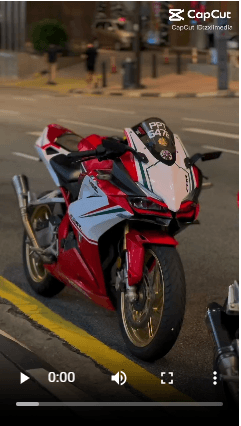
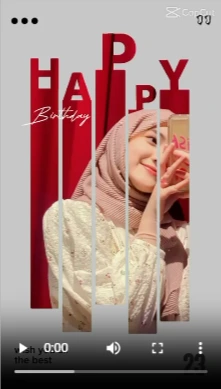
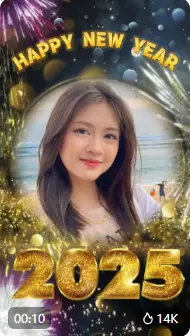
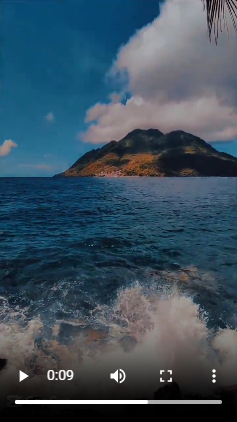
With the Split Video CapCut Template, your photo or video is divided into three parts and then brought back together using smooth beat transitions. The combination of beat effects and creative transitions gives your video a professional, polished look without needing any advanced editing skills.
In this blog post, we’re sharing 10 free Split CapCut Templates that are ready to use. Simply watch the demo videos, choose the style you like, add your content, and your viral-ready video will be ready in minutes—all within the CapCut app.
These Templates are perfect for creators who want to stay ahead of trends, boost engagement, and produce high-quality short videos effortlessly. If your goal is to grow on social media, the Split Video CapCut Template is a must-try!
Split Video CapCut Template
Split Screen And Shake Effect
Split Screen And Shake Effect
Split Video Zoom Edit
CapCut Trend Split Video
Split Video 4 Photo
Split Screen 9:16
Split Screen Cartoon Photo
Split Screen CapCut Trending
Split Video Blur Edit CapCut Trend
How to use Split Video CapCut Template?
Follow these simple steps to create a stunning, beat-synced video using the Split Video CapCut Template:
- Step 1: Preview the Demo Videos
Watch the sample/demo videos to see how each template works and choose the style that fits your content best. - Step 2: Click on the Template Link
Tap on the “Use Template in CapCut” button below the demo video. It will automatically open the CapCut app. - Step 3: Import Your Photos or Videos
Add 1 or more photos/videos from your gallery that you want to use in the split effect. - Step 4: Apply the Template
CapCut will automatically apply the split effect, beat sync, and transitions based on the selected template. - Step 5: Make Small Edits (Optional)
You can adjust timing, effects, or text if needed to personalize the video. - Step 6: Export and Save
Once you’re happy with the result, export the video in high quality and save it to your device. - Step 7: Share on Social Media
Post your final video on Instagram Reels, TikTok, or YouTube Shorts to boost reach and engagement!